
macOS updates
Upgrade schedule and time estimates
Minor Apple updates (security patches, operating system (OS) “point revisions” and other minor updates) will be applied to your system monthly in alignment with the Microsoft updating schedule on UQ computers.
The minor updates will take roughly between 5 and 30 minutes to install depending on severity and hardware.
Major Apple OS upgrades (moving from one version of the OS to the next) will be available for self-install shortly after they become available (typically in October) and will be scheduled to apply to your system during the December to February period.
A prompt will be displayed notifying you of scheduled updates including the deadline of the installation. You may install these updates at any time before the installation deadline.
When the deadline has been reached, your computer will automatically install the updates and will restart to apply them.
Expected pop-up windows
macOS Sonoma (14) and above
Minor updates
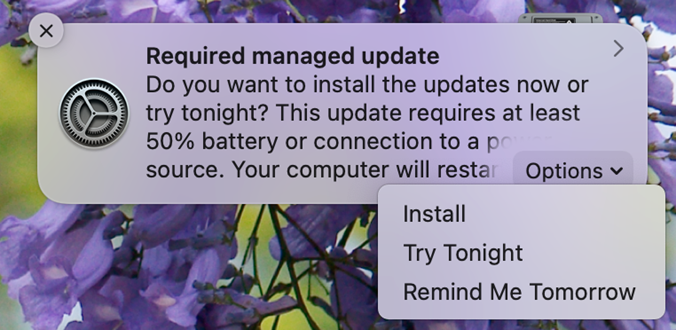
When minor software updates are ready to be installed, you will receive the “Required managed update” notification pictured below with the following options:
- Install: This will close the window and begin the installation. Your system will be restarted automatically when the update is complete.
- Try Tonight: Your system snooze and try again in the evening when you are no longer using the computer. Installation will begin automatically if the system is idle.
- Remind Me Tomorrow: The update will be deferred until the following day. If you select this option, you will not be given another opportunity to defer the update – it will be automatically installed the following day after this option has been selected.
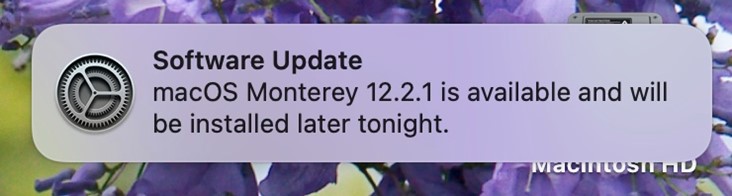
Clicking the notification will open the Software Update window.
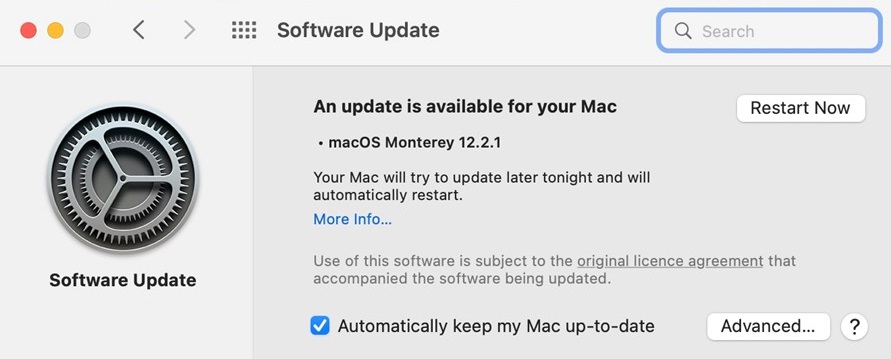
Click 'Restart Now' to install the updates.
Major updates
When major software updates are ready to be installed, you will receive the “Required managed update” notification pictured below which includes the installation deadline, along with the following options:
- Install: This will close the window and begin the installation. Your system will be restarted automatically when the update is complete.
- Install Tonight: This will close the window and try to install updates in the evening when you are no longer using the computer. Installation will begin automatically if the system is idle.
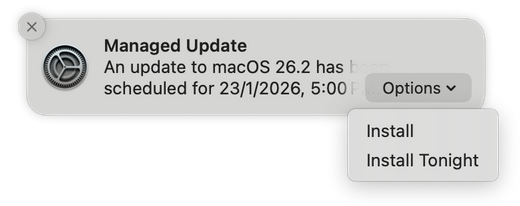
You may also install the update at a time that is convenient for you by following the below procedure:
- Open “System Preferences”
- Select “Software Update Available"
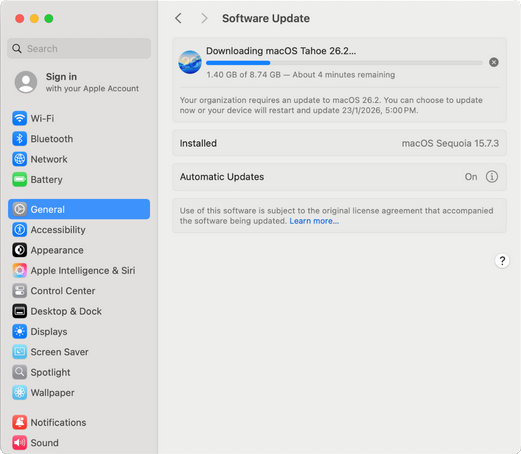
Select “Upgrade Now”
If you do not update your system before the advertised installation date, your system will automatically apply the update and restart once the deadline has been reached.